The Arena portal is the entry point to most professional applications of the National Education. For staff in the Amiens academy, connecting from home raises specific questions: which browser to use, how to react to a locked account, where to find your credentials. This guide details the points that really cause problems on a daily basis.
Browser and technical compatibility for Arena Amiens
Even before entering your credentials, the choice of browser determines the proper display of the portal. The IT department of the Amiens academy strongly advises against using Internet Explorer and older versions of Edge. Display incompatibilities on the new Arena portal have been reported several times during the 2023 and 2024 school years.
Have you ever encountered a page that only loads halfway, a grayed-out button, or a form that refuses to validate? The browser is often the cause. Use up-to-date Firefox, Chrome, or Edge Chromium to avoid these blocks. Safari also works on Mac, provided it is in its recent version.
Remember to clear the cache and cookies if you notice abnormal behavior after a portal update. A simple keyboard shortcut (Ctrl + Shift + Del on Windows, Cmd + Shift + Del on Mac) is enough. This action resolves most display issues without needing to contact support.
To access the Arena portal of the Amiens academy from home, you must go through the URL of the academic authentication portal, and not through a search engine that might redirect to an outdated page or a third-party site.

Connecting to Arena from home: automatic account locking
Connecting from home does not work exactly like at the office. The Amiens academy has implemented mechanisms for automatic locking after atypical login attempts. Several unsuccessful attempts, unusual hours, or inconsistent geolocation can be enough to temporarily lock your account.
This system, strengthened since 2022, has led to a notable increase in temporarily locked accounts according to the academic security reports for 2023-2024. The academy’s CISO closely monitors external connections, in line with the recommendations from ANSSI published in its 2023 cybersecurity threat overview.
What to do if your Arena account is locked
The first reflex is to wait. A temporary lock usually lifts after a short period without further attempts. If the lock persists, you have three options:
- Use the password reset form available on the academic authentication page, provided you have previously entered a recovery email address.
- Contact the DSDEN of your department (Aisne, Oise, or Somme), which has access to account management and can manually unlock your access.
- Reach out to the IT support service of the Amiens rectorate via a colleague’s academic messaging or by phone, specifying your identifier (in the format firstname.lastname) and the nature of the lock.
Do not multiply login attempts in case of failure: each additional attempt prolongs the duration of the lock. This is the most common trap.
Arena credentials and academic messaging Amiens: frequent confusions
Arena credentials are those of your academic account, the same username/password pair as for the Webmail of the Amiens academy. If you are already logging into your academic email, you have the correct credentials for Arena.
The confusion often arises because some staff also have access to the ENT (Digital Work Environment), which sometimes uses a different set of credentials. Arena and academic messaging share the same credentials, but the ENT may have its own depending on the institution.
First login for new staff
Newly assigned staff in the Amiens academy benefit from a digital welcome pathway. This online training module includes getting started with Arena and setting up professional messaging. The NUMEN (national education identifier) serves as the basis for activating the account, but the password must be personalized upon first login.
If you have never received your credentials, the administration of your institution or the relevant DSDEN can initiate the account creation process. Keep your NUMEN: it remains the key for any future resets.
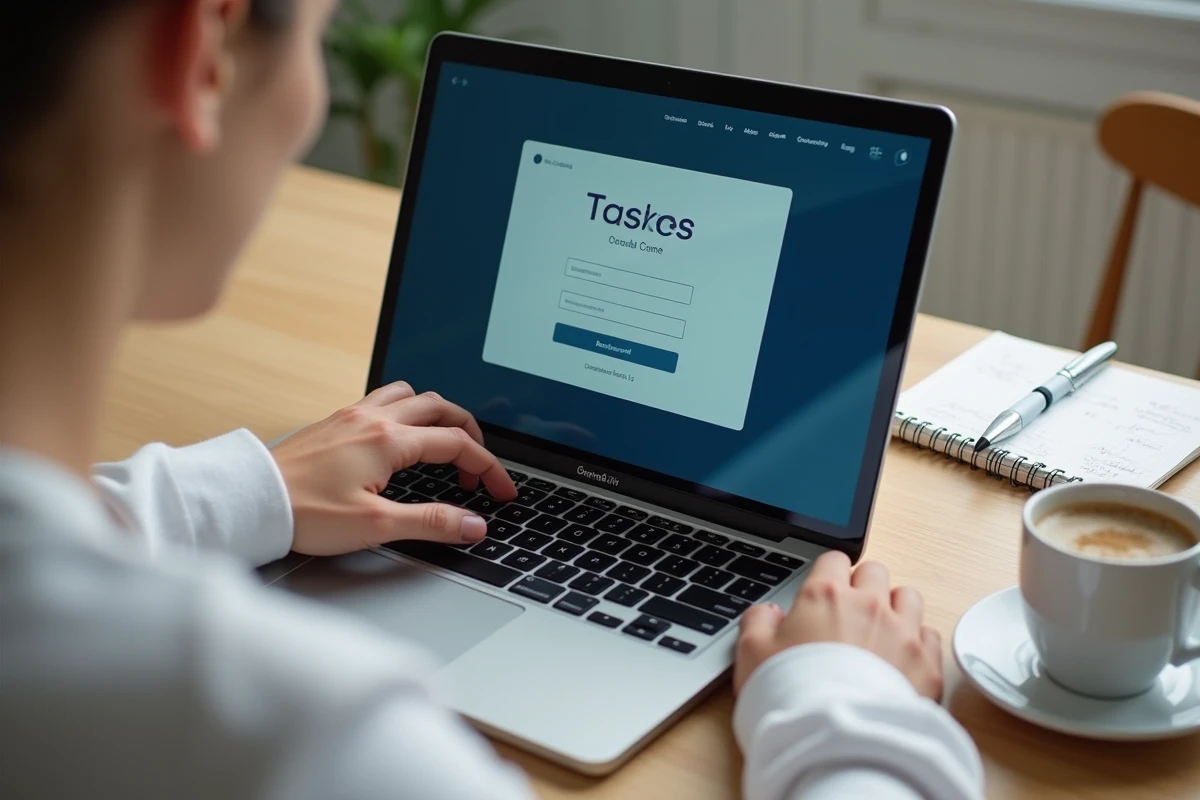
Securing your Arena connection at home: important actions
The ministerial strategy for educational digital security 2023-2027 emphasizes the individual responsibility of agents in protecting their access. From home, a few simple precautions significantly reduce risks.
- Never save your Arena password in a browser shared with other household members. A dedicated password manager (Bitwarden, KeePass) is preferable.
- Ensure that your home Wi-Fi connection uses WPA2 or WPA3 encryption. An open network or one protected by the old WEP protocol exposes your credentials.
- Always log out of Arena after each session, especially on a laptop that may be used on the go.
- Enable automatic updates for your operating system and browser to benefit from the latest security patches.
A strong password contains at least twelve characters, mixing letters, numbers, and special characters. Avoid any reference to your institution, your name, or your birth date.
The tools available in Arena (service management, consultation of training resources, access to rectorate business applications) contain sensitive data. A compromised connection from home can have the same consequences as an intrusion into the institution’s network.
The Arena portal remains accessible at any time from a personal device, provided these few rules are followed. If in doubt about the legitimacy of a message asking for your credentials, report it directly to the academic CISO via your professional messaging: the Amiens academy never asks for passwords via email.