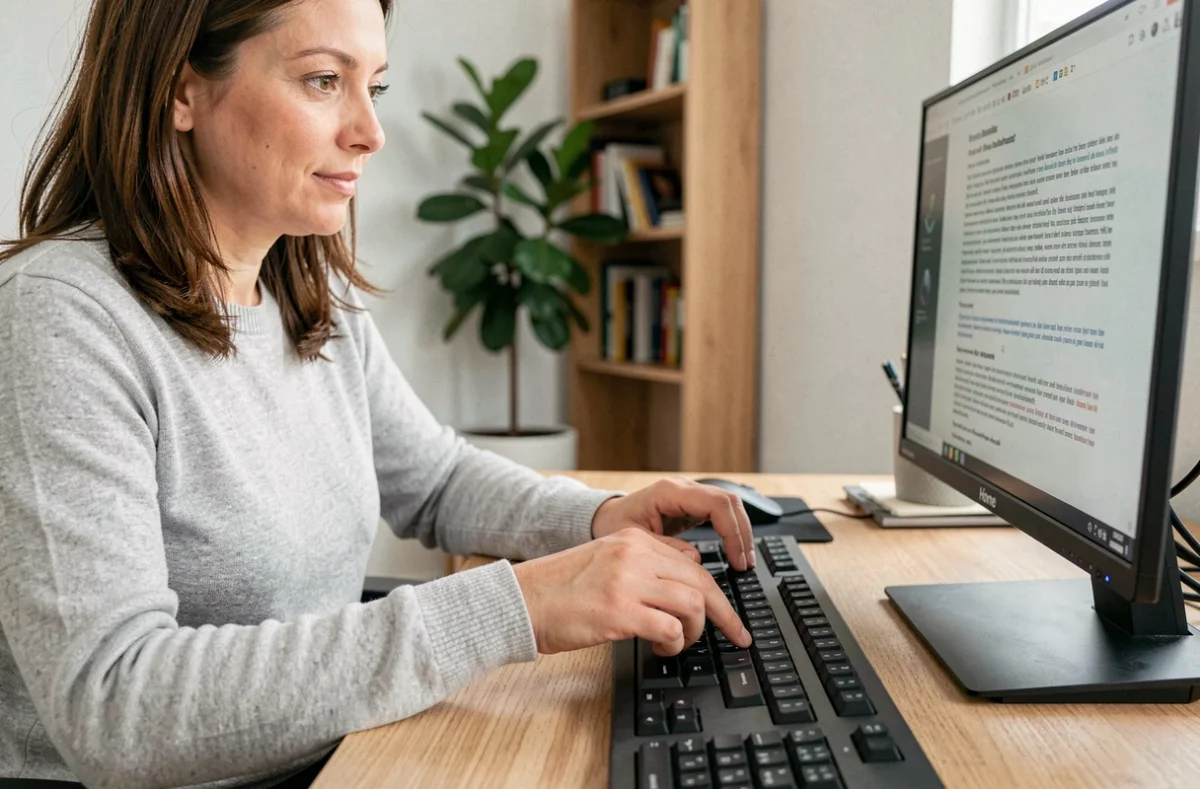
The Home key is found on most desktop keyboards, wedged between Delete and End, yet it remains one of the least used by French-speaking users. On an AZERTY keyboard, its behavior changes depending on the operating system, the application open, and even the type of keyboard (compact or full-size). Measuring these differences helps to understand why this key deserves attention.
Home Key by System: Comparing Behaviors on Windows and macOS
The first instinct might be to believe that the Home key does the same thing everywhere. The discrepancies between Windows and macOS show the opposite.
| Action | Windows (full-size AZERTY keyboard) | macOS (compact keyboard) |
|---|---|---|
| Go to the beginning of the line | Home key | Command + left arrow |
| Go to the beginning of the document | Ctrl + Home | Command + up arrow |
| Select to the beginning of the line | Shift + Home | Shift + Command + left arrow |
| Select to the beginning of the document | Ctrl + Shift + Home | Shift + Command + up arrow |
| Dedicated physical key | Yes (navigation block) | Absent on most laptops (Fn + left arrow) |
On Windows, Home brings the cursor to the beginning of the active line in most text editors and browsers. Combined with Ctrl, it reaches the beginning of the document. On macOS, the physical key often does not exist on compact keyboards: the equivalent is achieved through Fn + left arrow, or even Command + left arrow depending on the context.
This difference has a direct impact on productivity. A user switching from a Windows machine to a MacBook must relearn their navigation shortcuts. Understanding the exact role of the home button on AZERTY keyboard prevents wasting time figuring out how to return to the beginning of a line or page.

Keyboard Shortcuts with Home: Combinations that Speed Up Text Navigation
The Home key is most valuable when combined with other modifier keys. Used alone, it repositions the cursor. Combined with Ctrl, Shift, or Alt, it triggers selection and large-scale movement actions within a document.
Quick Selection in a Word Processor
In Word or LibreOffice Writer, Shift + Home selects all text between the cursor and the beginning of the line. For a writer correcting a paragraph, this combination replaces the slower and less precise mouse drag-and-drop on long lines.
Ctrl + Shift + Home goes further: the selection extends from the cursor to the very first character of the document. This command is useful for applying global formatting or deleting a block of text upstream.
Navigation in Spreadsheets
In Excel or Calc, the Home key returns to column A of the active row. Ctrl + Home takes you directly to cell A1, regardless of where the cursor is in the sheet. For a file with thousands of rows, this combination avoids manually scrolling up.
- Home alone: returns to the first cell of the current row
- Ctrl + Home: returns to cell A1 of the workbook
- Ctrl + Shift + Home: selects all cells between the current position and A1
- In a web browser, Home scrolls to the top of the displayed page without reloading
Compact and Portable Keyboards: When the Home Key Disappears from the Physical Pad
Full-size AZERTY desktop keyboards have a block of six keys (Insert, Delete, Home, End, Page Up, Page Down) located between the alphanumeric pad and the numeric keypad. On laptops and compact keyboards, this block is often removed to save space.
The Home function then migrates to the Fn key combined with the arrow keys. On most Windows laptops, Fn + left arrow replicates the behavior of Home. On MacBooks, it is also Fn + left arrow, but Command + left arrow may yield a different result depending on the application.

This transfer of function poses a concrete problem: the user needs two hands to execute a shortcut that only required one on a full-size keyboard. For individuals with motor disabilities or those using accessibility software (Narrator, Magnifier on Windows), the loss of the physical key slows down navigation without a mouse.
Remapping the Home Key on a Compact Keyboard
Several software solutions allow users to reassign the Home function to another key. On Windows, Microsoft’s PowerToys offers a keyboard remapping module. On macOS, third-party applications like Karabiner-Elements provide the same capability.
Remapping is particularly useful for users working in code editors or terminals, where line-by-line navigation with Home and End is part of the standard workflow.
Accessibility and Mouse-Free Navigation: The Home Key in a Comprehensive Keyboard Strategy
Windows offers a set of keyboard shortcuts dedicated to accessibility. The Home key fits into this logic of pointer-free navigation. Activating the Narrator, launching the Magnifier, or using voice dictation can be done entirely via the keyboard, and the Home key complements this toolkit by allowing quick return to the starting point of content.
- Ctrl + Home in a long web form repositions focus on the first field, useful for screen readers
- Shift + Home in a terminal selects the currently entered command from the cursor to the beginning of the line
- In office software, Home combined with Shift allows for precise selection without a mouse
For a user who navigates exclusively via keyboard, the Home key is not an optional shortcut. It is part of a coherent set with End, Page Up, Page Down, Tab, and the arrows, covering all possible movements within an interface.
The difference in behavior between operating systems and the gradual disappearance of the physical key on compact keyboards make mastering it all the more necessary. Knowing the exact combinations according to one’s work environment means gaining fluidity in every task involving text, a spreadsheet, or a browser.